🔀 How to Switch Between Koalendar Accounts
Have a personal and a work account, or manage a client's account? Stay signed in to several Koalendar accounts in the same browser and switch between them in one click, without logging out.
🧭 In this guide
- ➕ Step 1: Add another account
- 🔀 Step 2: Switch accounts
- 🚪 Step 3: Remove an account
- 💡 Best Practices
- ℹ️ Frequently Asked Questions
✅ Step 1: Add another account
- Click your name at the top right.
- Click Signed in as… at the top of the menu.
- Click Add another account and log in to your other account as usual.
✅ Step 2: Switch accounts
Open the menu again and click Signed in as…:
- The account you're using now.
- Your other accounts. Click one to switch to it.
- Add another account.
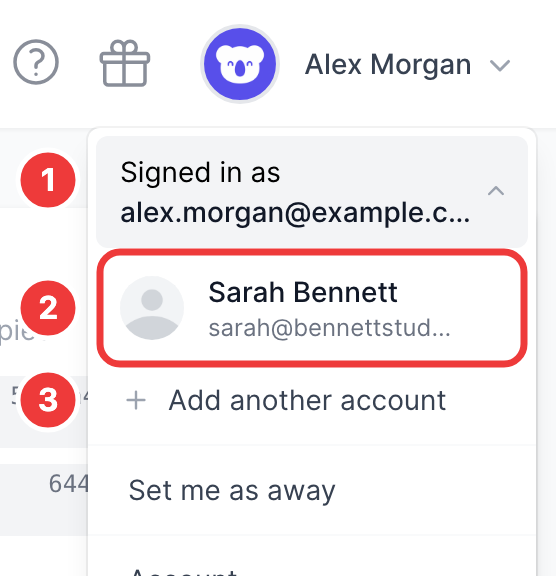
You land on the dashboard of the account you picked.
✅ Step 3: Remove an account
To remove an account from the list, open the switcher and remove it from its row. This signs that account out of this browser only.
💡 Best Practices
- Check the email under Signed in as before changing settings, so you edit the right account.
- Working as a team? Invite teammates to a workspace instead of sharing logins.
ℹ️ Frequently Asked Questions
How many accounts can I add?
You can be signed in to up to 6 accounts at once in the same browser.
Do I need to switch on every device?
Yes. The list of accounts is saved in each browser.
What happens when I log out?
Logging out signs you out of the account you're using and switches you to your next signed-in account, if you have one.
I created a second account by mistake.